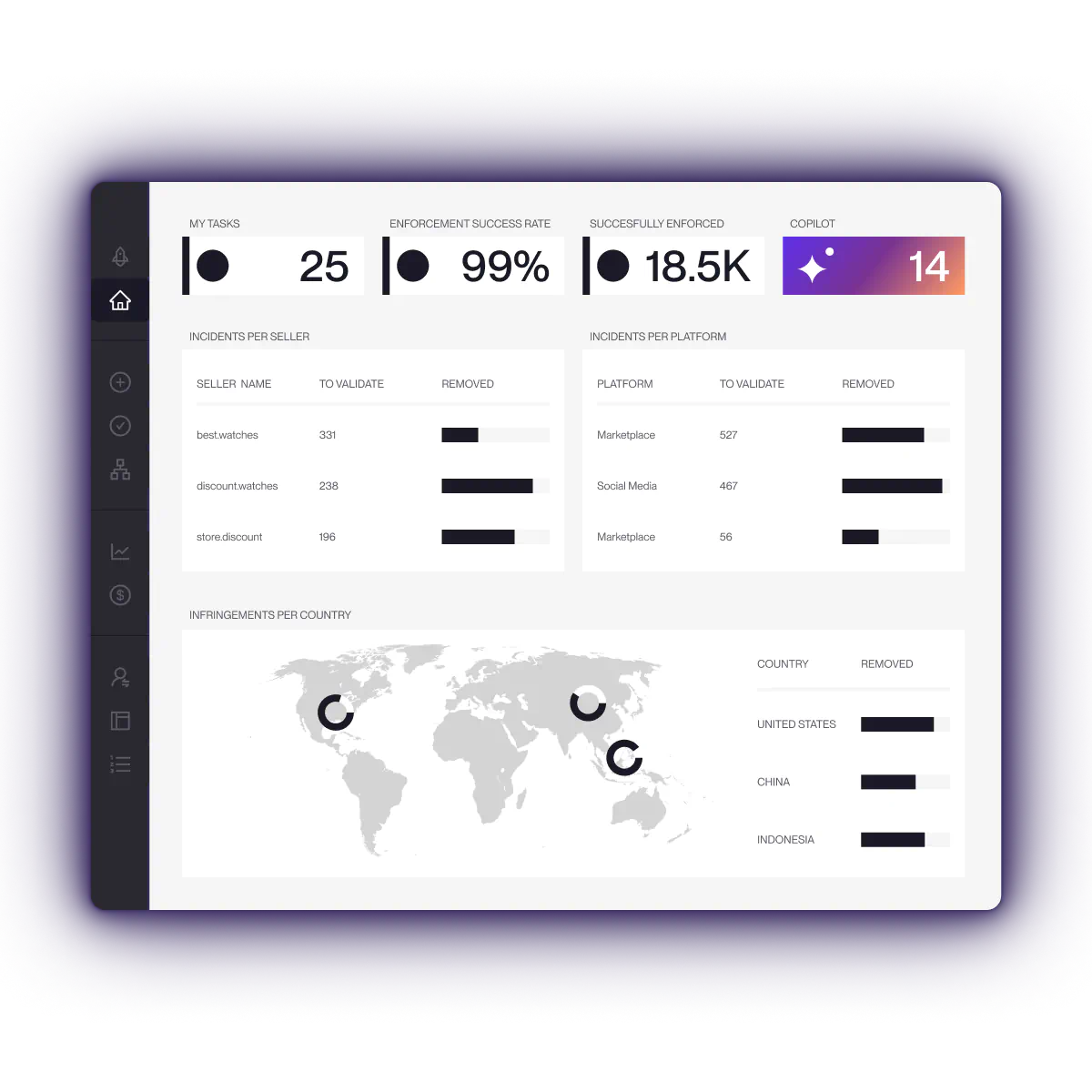


Fake Google Maps listings can divert customers, impersonate legitimate companies, promote scam websites, collect payments, or misuse a brand’s name and contact details.
If you find a fraudulent or misleading Business Profile, you can report it directly through Google Maps. For more serious or repeated abuse involving incorrect business names, phone numbers, websites, or coordinated fake listings, Google also provides a Business Redressal Complaint Form.
This guide explains how to report a fake business on Google Maps, what evidence to collect, how to recognize impersonation, and what brands can do when fake listings keep coming back.
TL;DR
- To report a fake business on Google Maps, open the listing and select Suggest an edit → Place is closed or not here → Offensive, harmful, or misleading.
- For fraudulent business information involving a business name, phone number, or website, use Google’s Business Redressal Complaint Form.
- Preserve the listing URL, screenshots, phone number, website, address, reviews, and other evidence before reporting it.
- A suspicious listing is not automatically fake. Check whether the business is eligible to appear on Google and whether the information actually violates Google’s policies.
- Fake Google Maps profiles can be part of a wider impersonation campaign involving fake websites, advertisements, social profiles, and phishing.
- After a listing is removed, continue monitoring for replacement profiles and reused contact details.
What is a fake Google Maps business listing?
A fake Google Maps business listing is a Business Profile that contains fraudulent or misleading information about a business or presents a business that does not legitimately operate as claimed.
The abuse can take several forms. A profile may invent a business entirely, impersonate an existing company, use a false location, replace a legitimate phone number or website, or send customers to a scam operation.
For brands, the most damaging cases are often business impersonation. A fake listing may copy the company name, logo, photographs, address, services, or other identifying information so that someone searching for the real business contacts the impersonator instead.
Google requires businesses to meet eligibility requirements to maintain a Business Profile. In general, eligible businesses must make in-person contact with customers during their stated hours, although Google provides exceptions for certain business types. Google also restricts practices such as using an ineligible virtual office as a business location.
This distinction matters. An unfamiliar listing or a business with unusual information is not automatically fraudulent. Reports should focus on specific misleading information or policy violations.
Why fake Google Maps listings are dangerous for brands
A Google Maps profile appears at a high-intent moment: someone is actively looking for a business, location, phone number, website, product, or service.
An impersonator that inserts itself into that journey may be able to:
- Divert calls intended for the legitimate company
- Redirect users to a fraudulent website
- Collect deposits or payments
- Sell counterfeit or nonexistent products
- Steal personal or payment information
- Misrepresent itself as an authorized branch, dealer, or service provider
- Generate customer complaints that are ultimately blamed on the real brand
- Support a wider website impersonation or phishing campaign
A fake Maps listing may therefore be only one visible part of the problem.
The same operator can reuse its telephone number, domain, messaging accounts, photographs, advertisements, or other infrastructure across several profiles. Preserving this information can make repeat abuse easier to identify.
How to report a fake business on Google Maps
For an individual misleading or fraudulent profile, start with Google Maps itself.
Step 1: Open the suspicious Business Profile
Search for the business in Google Maps and open the profile you believe is fraudulent or misleading.
Before submitting anything, save the exact Maps URL. This allows your team to identify the same profile later even if its visible information changes.
Step 2: Preserve evidence
Capture the information that explains why you believe the listing is fake.
Useful evidence can include:
- Screenshots of the full Business Profile
- Business name
- Maps URL
- Listed address
- Telephone number
- Website URL
- Opening hours
- Images or logos
- Customer reviews mentioning scams or confusion
- Screenshots of your legitimate Business Profile
- Evidence showing the listed location does not correspond to the claimed business
- Customer complaints or messages showing they contacted the fake company
If the profile links to a website, preserve that separately before alerting the operator. Our guide to website impersonation explains how to collect evidence from a fake site without relying only on its homepage.
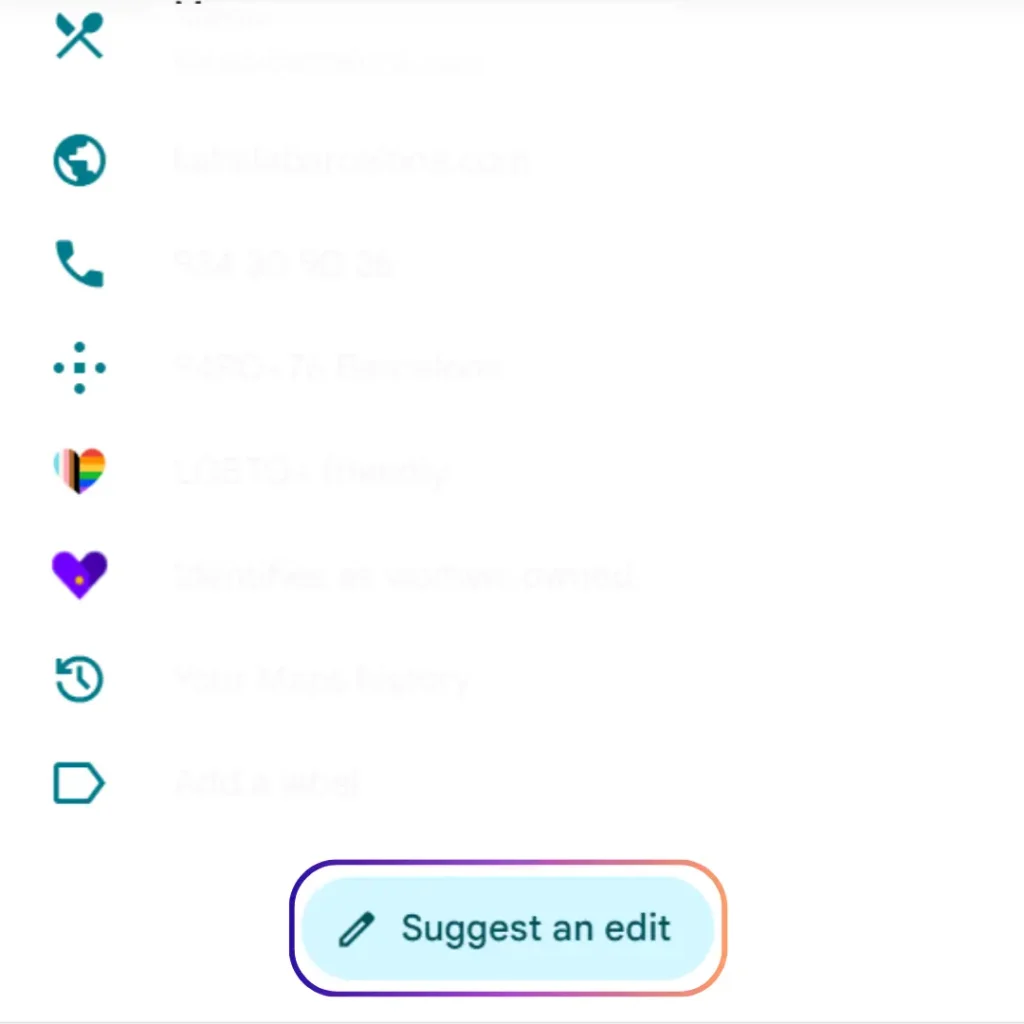
Step 3: Select “Suggest an edit”
From the suspicious Business Profile in Google Maps, select Suggest an edit.
Google currently routes reports about businesses that appear fraudulent or misleading through this menu.
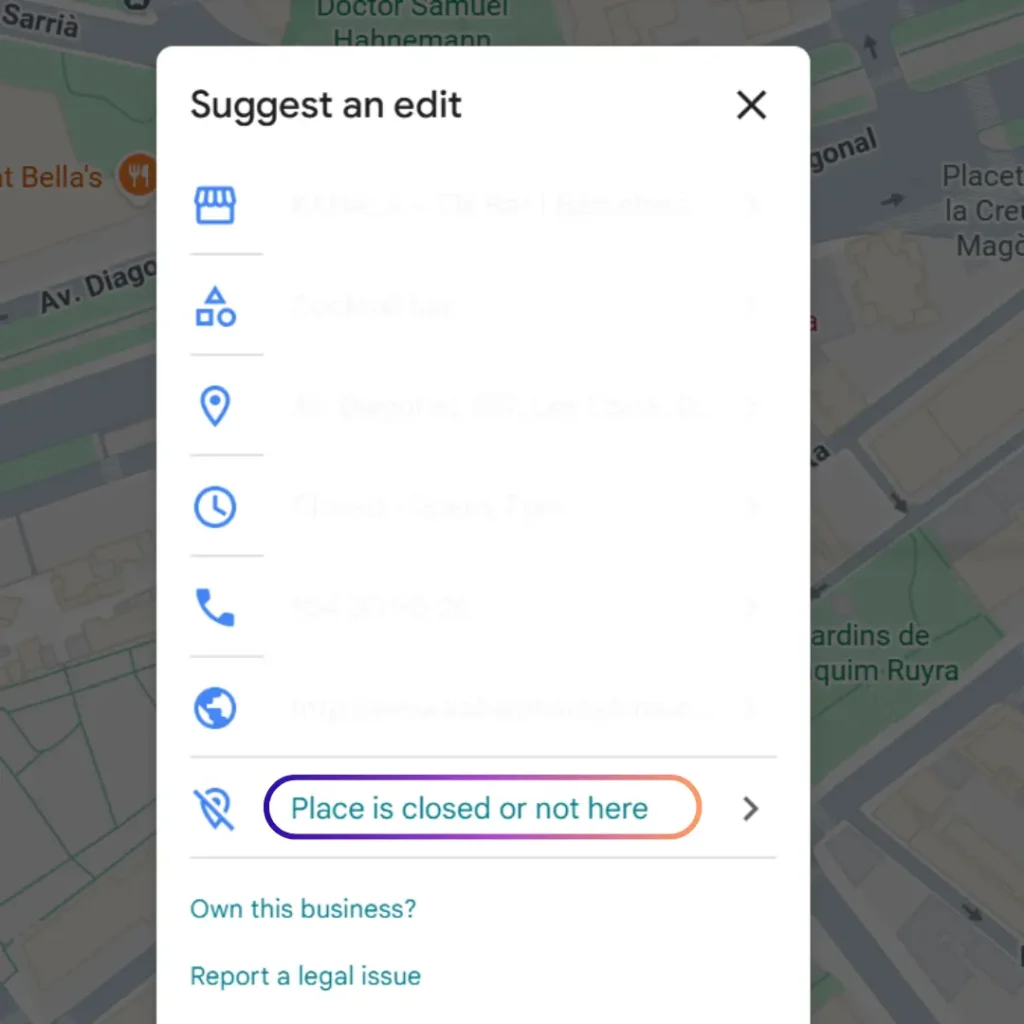
Step 4: Select “Place is closed or not here”
Choose Place is closed or not here.
Do not choose a removal reason simply because you dislike a competing business or disagree with its practices. Select the option that most accurately describes the policy issue you observed.
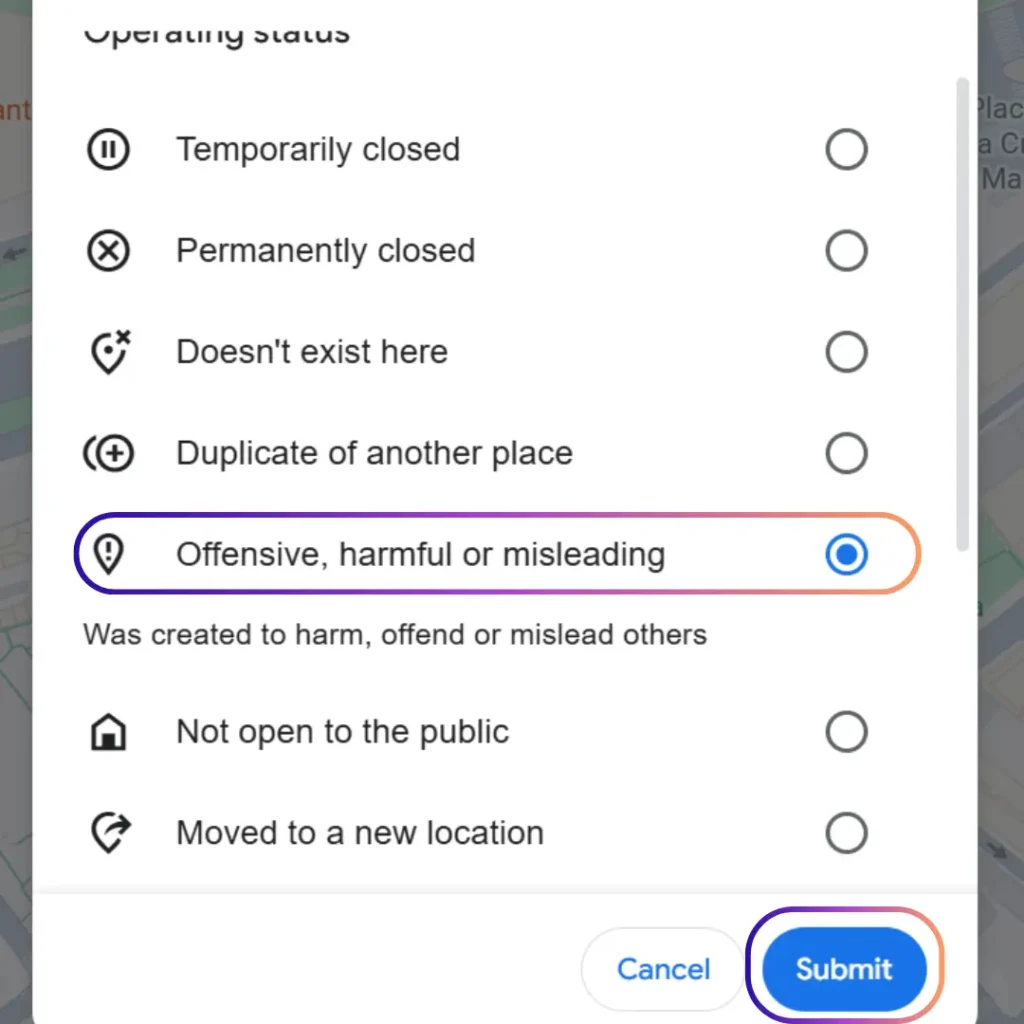
Step 5: Choose “Offensive, harmful, or misleading”
For misleading business information or fraudulent activity, Google instructs users to select Offensive, harmful, or misleading.
Submit the report once you have confirmed that the profile and reason are correct.
Google will review the information and decide whether action is appropriate. Submitting a report does not guarantee that a listing will be removed.
When to use Google’s Business Redressal Complaint Form
Google also provides a Business Redressal Complaint Form for complaints about fraudulent activity or incorrect information associated with businesses on Maps.
This route is particularly relevant when the problem involves misleading:
- Business names
- Telephone numbers
- Website URLs
- Business information
- Multiple connected profiles
For a brand facing repeated impersonation, the form can provide more context than an isolated Maps edit.
Prepare the evidence before submitting the complaint. Clearly identify your legitimate company, the profiles being reported, the misleading information, and why the profiles create customer confusion or otherwise violate Google’s rules.
Avoid making the report unnecessarily long. Specific evidence is more useful than broad allegations such as “this company is fake.”
For example:
Weak report:
“This listing is a scam and is stealing our customers. Please remove it immediately.”
Stronger report:
“This profile is not operated by our company or an authorized location. It uses our registered brand name and links customers to example-fake-site.com. Our official Business Profile is [URL]. The listed telephone number is not associated with our organization. Attached screenshots show customers being directed to the unrelated website.”
The second version tells the reviewer exactly what to verify.
What if the fake listing is impersonating your brand?
A fake profile that impersonates a legitimate brand may involve more than inaccurate Maps information.
If the profile uses your protected brand name or trademark in a way that creates confusion, a trademark infringement complaint may also be appropriate.
Google’s legal reporting system includes routes for issues involving intellectual property and other legal rights. Rights holders should use the route that corresponds to the actual violation and be prepared to provide information supporting their rights.
Trademark complaints generally require more than showing that another company mentioned your name. The key issue is whether the use violates your trademark rights, which will depend on the circumstances and jurisdiction.
A Maps profile may also connect to other forms of impersonation:
| What you find | What else to investigate |
| Fake business profile | Other Maps profiles using the same details |
| Website linked from the profile | Fake or cloned website |
| Copied brand name or logo | Trademark or impersonation issue |
| Fake login or payment page | Phishing |
| Counterfeit products | Marketplace or ecommerce infringement |
| Reused telephone number | Connected listings and scam campaigns |
| Social profile linked from Maps | Social media impersonation |
| Suspicious domain | Lookalike domain or typosquatting |
If the linked website is designed to steal credentials or payment information, follow the appropriate phishing reporting process as well as reporting the Maps profile.
Removing only the Maps listing leaves the underlying scam infrastructure online.
What if somebody has taken control of your real Business Profile?
A legitimate Business Profile that has been claimed or controlled by someone else is different from a completely fake listing.
If the profile represents your actual business but another person controls it, Google provides a process for requesting ownership of an existing Business Profile.
Do not automatically report the genuine profile as nonexistent. Doing so can create additional problems for your legitimate Maps presence.
First determine whether you are dealing with:
- A fake new listing
- A duplicate listing
- An unauthorized owner of your real profile
- Incorrect information on your real profile
- A separate business deceptively using your brand
The correct Google route depends on that distinction.
How to spot a fake Google Maps business
No single characteristic proves that a Business Profile is fraudulent.
Look for several signals together and compare them with independently verifiable information.
The website does not match the business
Check where the profile sends visitors.
A suspicious domain, recently created lookalike site, unrelated business name, unusual checkout page, or website that copies another brand can indicate impersonation.
If the domain closely resembles the legitimate brand domain, investigate whether it is a form of typosquatting.
The phone number appears across unrelated businesses
Search the listed number.
The same number appearing across several unrelated companies, locations, or business names can be a useful investigation signal.
It is not proof by itself. Agencies, call centers, and legitimate multi-location organizations can share infrastructure.
The address does not correspond to the claimed business
Compare the location with information on the company’s official website and other reliable sources.
Google allows eligible service-area businesses to operate without displaying a storefront address, so the absence of a traditional shopfront does not automatically make a listing fake.
However, false addresses and ineligible virtual offices can violate Google’s Business Profile rules.
The branding is inconsistent
Compare the profile with the company’s official brand presence.
Look for:
- Different spelling
- Old or modified logos
- Unusual telephone numbers
- Incorrect domains
- Different email addresses
- Copied images
- Claims of being an “official” branch or authorized partner that the brand does not recognize
Customer comments indicate impersonation or fraud
Reviews can reveal useful patterns.
Customers may say they:
- Paid somebody who was not the real company
- Called the listed number and reached another business
- Arrived at the address and found no business there
- Were sent to a suspicious website
- Were asked for unusual payment methods
- Received counterfeit or nonexistent products
Reviews should be treated as evidence to investigate, not automatic proof.
How to protect your real Google Business Profile
Removing fraudulent listings is important, but brands should also make the legitimate profile easier for customers to recognize.
Verify your Business Profile
Complete the verification method Google makes available for your profile.
Google determines available verification methods based on factors such as the business, region, public information, and other profile characteristics. Depending on the case, verification can involve video recording, phone or SMS, email, live video, or mail.
Do not rely on outdated instructions that assume every company receives a verification postcard.
Keep your business information consistent
Maintain accurate information across your:
- Official website
- Google Business Profile
- Social profiles
- Store locator
- Contact pages
- Major directories
- Local branch pages
Consistency makes it easier for customers and investigators to distinguish the legitimate company from an impersonator.
Monitor changes and suspicious profiles
Search for variations of your company and location, not only the exact brand name.
Impersonators may use:
- Brand + city
- Brand + customer service
- Brand + outlet
- Brand + repair
- Brand + support
- Brand + store
- Brand + promotion
- Misspelled brand names
Also monitor phone numbers, domains, logos, and images associated with previously confirmed impersonators.
Secure account access
Limit Business Profile access to people who need it, review users periodically, and remove former employees or vendors who no longer require access.
Account security and impersonation monitoring solve different problems, but both are necessary to protect a brand’s presence on Google.
Why removing one fake listing may not solve the problem
A successful takedown removes a profile. It does not necessarily remove the person or network behind it.
An operator can create another Maps listing using:
- A different address
- Another telephone number
- A slightly modified business name
- A replacement domain
- New images
- Another Google account
This is why repeated abuse should be investigated at campaign level.
Keep records of confirmed cases and look for shared identifiers. A telephone number, domain, payment destination, image, address pattern, or wording used across multiple profiles can reveal that apparently separate incidents belong to the same network.
The same principle applies across channels. Fake businesses can move users from Search or Maps to a spoofed website, social profile, advertisement, messaging app, or marketplace listing.
What to do after reporting a fake Google Maps listing
Preserve the case even after submitting the report.
Record:
- Date reported
- Google Maps URL
- Screenshots
- Report type
- Related domain
- Phone number
- Address
- Connected profiles
- Customer complaints
- Outcome
Then continue monitoring the same brand terms and identifiers.
If the listing disappears and an almost identical one appears a week later, being able to connect the cases is more useful than starting the investigation from zero.
For brands, the objective is not simply to report one fake business. It is to reduce the impersonator’s ability to keep reaching customers across Google and the wider web.
How Red Points helps brands respond to impersonation
Manual Google Maps reporting can work when a brand finds one clearly fraudulent profile. It becomes harder when impersonators repeatedly create listings, websites, advertisements, domains, and social accounts using the same brand identity.
Red Points’ Impersonation Removal solution helps brands identify and respond to impersonation across online channels.
Depending on the threat, this can include:
- Detecting fake websites and profiles
- Identifying copied brand assets
- Monitoring search engines and other online channels
- Connecting related infringement signals
- Preserving enforcement evidence
- Prioritizing high-risk cases
- Submitting and tracking takedown requests
- Detecting replacement threats after removal
- Monitoring recurrence
Red Points processes 5.1+ millions of enforcements per year and is trusted by more than 1,300 brands. Its enforcement workflow combines automated detection and validation with specialist oversight, helping teams focus action on confirmed threats.
For Google Maps specifically, brands should note that the appropriate enforcement route depends on the exact abuse involved. Maps abuse should not be treated as interchangeable with Google Ads, Gmail, website, or trademark enforcement.
Request a demo to see how Red Points helps brands detect and respond to business impersonation at scale.
Frequently asked questions
How do I report a fake business on Google Maps?
Open the Business Profile in Google Maps, select Suggest an edit, choose Place is closed or not here, and then select Offensive, harmful, or misleading. Submit the report with the most accurate information available.
Can I report a fake Google Maps listing if it is not impersonating my business?
Yes. Google Maps allows users to report misleading business information or fraudulent activity even when they do not own the business being impersonated.
Only make reports you reasonably believe are accurate. Do not use the reporting system against legitimate competitors.
What is Google’s Business Redressal Complaint Form?
The Business Redressal Complaint Form is a Google reporting route for fraudulent activity or misleading business information on Maps. It is particularly useful when a complaint concerns business names, phone numbers, websites, or broader patterns of fraudulent information.
Does reporting a fake business guarantee Google will remove it?
No. Google reviews reports and determines whether the profile violates its policies. A report is a request for review, not an automatic takedown.
Providing specific and verifiable evidence can make the issue easier to assess.
What evidence should I collect before reporting a fake business?
Save the Maps URL, screenshots, business name, address, telephone number, website, images, reviews, and any evidence demonstrating impersonation or false information.
If customers contacted or paid the impersonator, preserve those reports as well.
What if a fake Google Maps listing uses my trademark?
Report the misleading Maps profile through the appropriate Business Profile route. If the use also infringes your trademark rights, consider Google’s trademark or legal reporting process.
The correct route depends on how the trademark is being used and the rights you hold.
Can a service-area business legitimately appear on Google Maps without a storefront?
Yes. Eligible service-area businesses can maintain Business Profiles while hiding their physical address and specifying the areas they serve.
A missing storefront therefore does not prove a profile is fake.
Are virtual offices allowed on Google Business Profiles?
Generally, a business cannot use a virtual office as its Business Profile location when it does not actually operate there. Google provides more specific requirements for businesses operating from co-working spaces and similar locations.
What should I do if someone controls my real Google Business Profile?
Use Google’s ownership request process rather than reporting your legitimate profile as fake. Google provides a specific workflow for cases where a Business Profile already exists and somebody else controls it.
Can a fake Google Maps listing lead to a phishing website?
Yes. Fraudulent profiles can direct users to fake websites designed to impersonate a company, collect credentials, take payments, or support other scams.
Report both parts of the campaign through the relevant channels rather than stopping after the Maps report.
How can I find more fake listings impersonating my brand?
Search Google and Google Maps using your brand name together with locations, product names, customer-service terms, and common brand variations. Also investigate phone numbers, domains, addresses, images, and other identifiers found in confirmed fake listings.
For repeated attacks, monitoring those shared identifiers is usually more effective than relying only on exact-name searches.